Windows 11 has implemented the ability to move the taskbar beyond the bottom edge. Users can now reposition the taskbar to the top, left, or right sides of the display. This feature is accessible through the system settings, found by right-clicking an empty spot on the taskbar and selecting Taskbar settings.
The process is straightforward. Within the Taskbar settings, users must scroll to the Taskbar behaviors section. Here, four thumbnail options—Bottom, Top, Left, and Right—will appear. Selecting any of these thumbnails instantly moves the taskbar across the screen. Both the Start, Search, and system flyout components will follow the taskbar when it moves.
Microsoft has stated that this feature is available on version 26H2. The rollout plan includes pushing the functionality to 24H2 and 25H2 through subsequent monthly updates. If the option is not yet visible, checking for system updates is the recommended solution, though the rollout is staged.
A major technical restriction is that the taskbar cannot be dragged to a new edge like it was possible in Windows 10. All changes must be executed through the Settings menu, and a single choice applies universally to every monitor connected to the device. Consequently, per-display customization is not currently available.
The movement of the taskbar introduces several trade-offs. The most immediate drawback is the complete failure of the auto-hide function when the taskbar leaves the bottom edge. Even if the auto-hide checkbox remains checked, the taskbar will sit on screen permanently. Windows will display a note explicitly stating that the setting is only available when the taskbar is located at the bottom.
Testing the top edge reveals a relatively minimal pain point. Icon alignment can still be set to Left or Center, the full search box fits, and the Small taskbar size option remains functional. Sides, however, present a harsher experience.
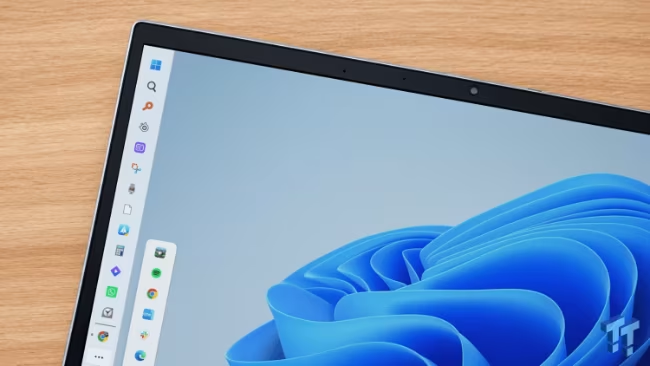
When moved to either side, the search box collapses into a plain icon. Furthermore, the Small size setting loses functionality entirely, as Microsoft currently supports it only for the top and bottom positions. A permanent strip of screen width is consumed by the icons, and the system tray and clock stack vertically at the base.
This structural limitation makes the tablet-optimized taskbar, which is designed to remain bottom-only, less useful when the bar is placed elsewhere.
Functional analysis suggests differing use cases depending on the display geometry. On a standard 16:9 laptop screen where vertical space is limited, moving the taskbar to the top offers no practical advantage over the bottom. Side placement, conversely, eats into every visible window area on a 1920×1080 screen.
Conversely, a desktop setup with substantial horizontal room may benefit from a side placement. In one observed use case, moving the taskbar to the left side allowed for a vertical listing of uniquely labeled buttons for each open window, which simplified switching between identical File Explorer instances.
The author of the supporting text noted that a side taskbar performs optimally on a wide or ultrawide monitor. For laptops, the bottom edge remains the superior location due to the auto-hide feature. Even when on the bottom, optimizing the view requires minor cleanup. Disabling Task view and Widgets under Taskbar items can shorten the column, and ensuring the pinned app list remains concise improves vertical readability.
It is critical to recognize that the feature is not complete. Auto-hide remains non-functional on any edge except the bottom, and Microsoft has not provided a timeline for when this restriction may change.