OPNsense firewall plugin
Switch a device’s internet off at bedtime, automatically.
Parental Control gives every device the hours it may be online, and a switch on the OPNsense dashboard to turn it off right now. Blocked devices lose the internet only: printers, the NAS and everything else at home keep working.
Install · run once on the firewall as root
fetch -qo /tmp/pc.tgz https://codeload.github.com/nycoagung/opnsense-plugin-parentalcontrol/tar.gz/refs/heads/main && rm -rf /tmp/pcx && mkdir -p /tmp/pcx && tar -xzf /tmp/pc.tgz -C /tmp/pcx && sh /tmp/pcx/opnsense-plugin-parentalcontrol-main/install.sh- Free
- MIT licence
- OPNsense 26.7+
- IPv4 networks
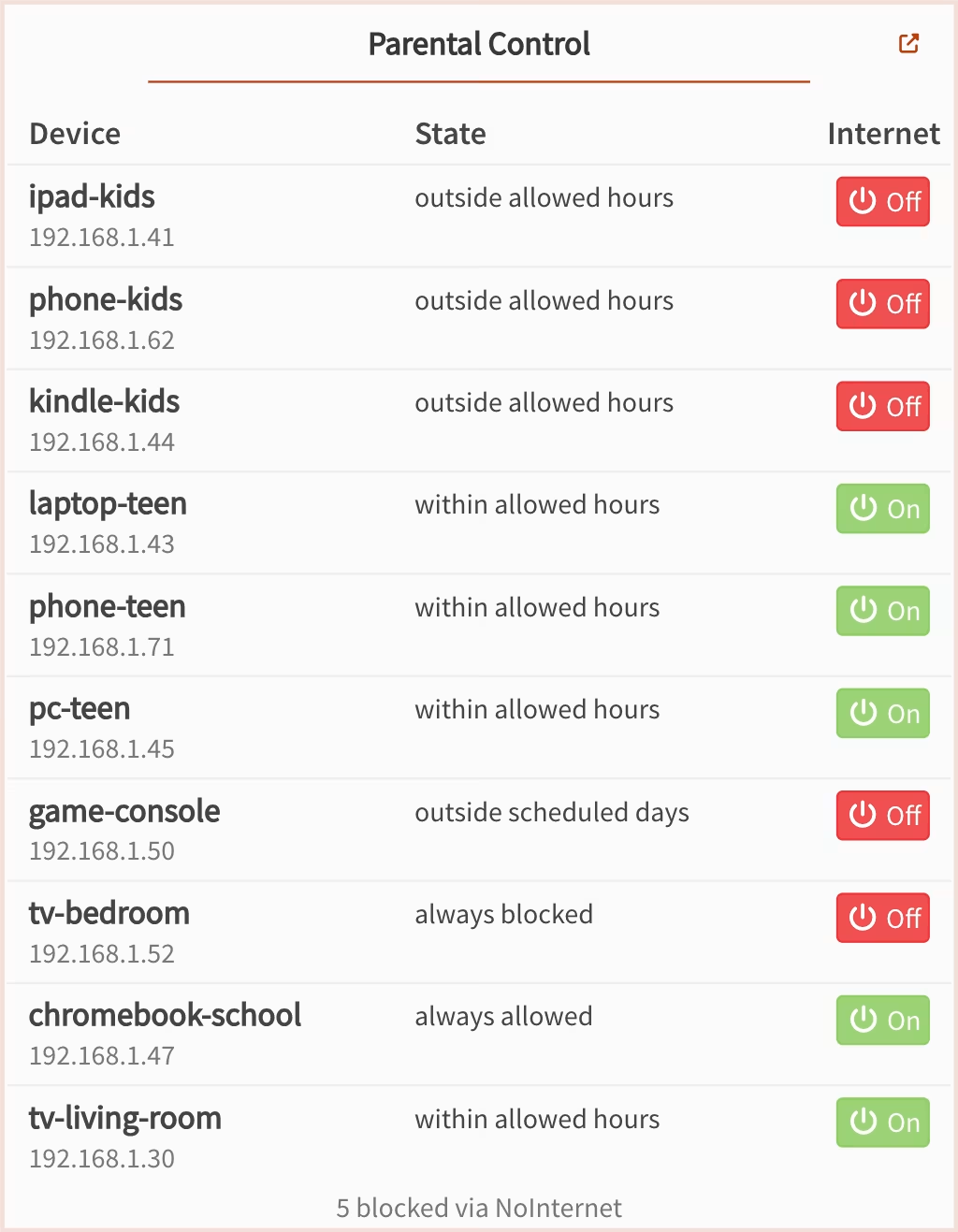
- Instant A switch updates one firewall table, with no ruleset reload.
- Internet only Printers, media players, the NAS and local dashboards keep working.
- One rule Two aliases and a single rule, however many devices you add.
- Off means off Existing connections are dropped, so a stream doesn’t run on.
What it does
Internet hours, device by device
Schedules
Set the hours a device may be online
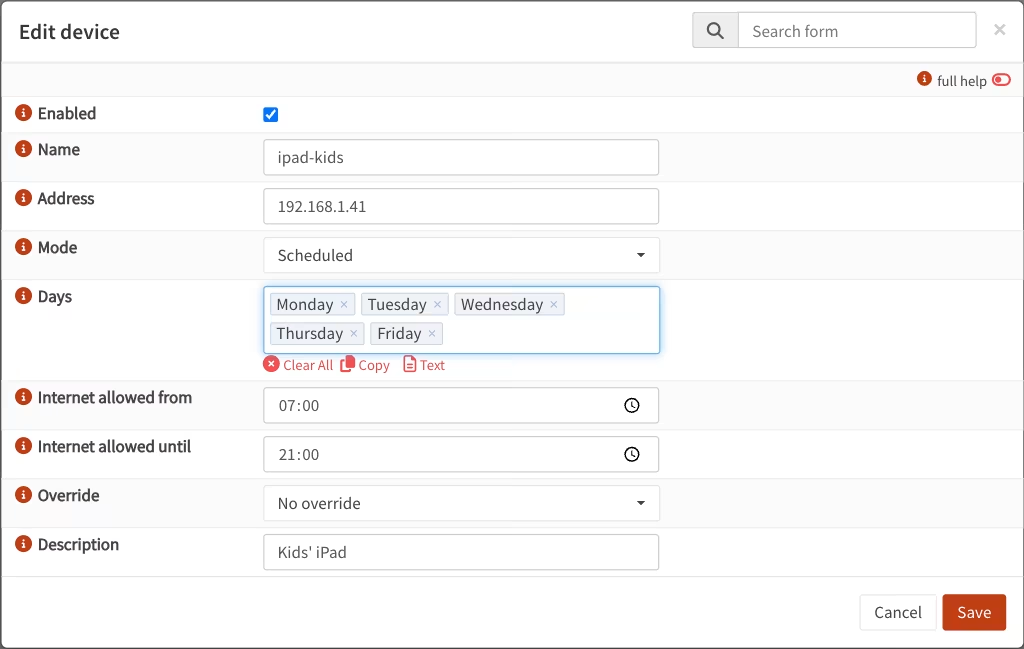
Each device is always allowed, always blocked, or scheduled. A schedule is the window when internet is allowed plus the days it applies, so a bedtime reads “allowed 07:00–21:00”. On other days the device stays offline.
- Always allowed, always blocked or scheduled
- Choose the days it applies
- Windows can run past midnight
On demand
A switch for every device on the dashboard
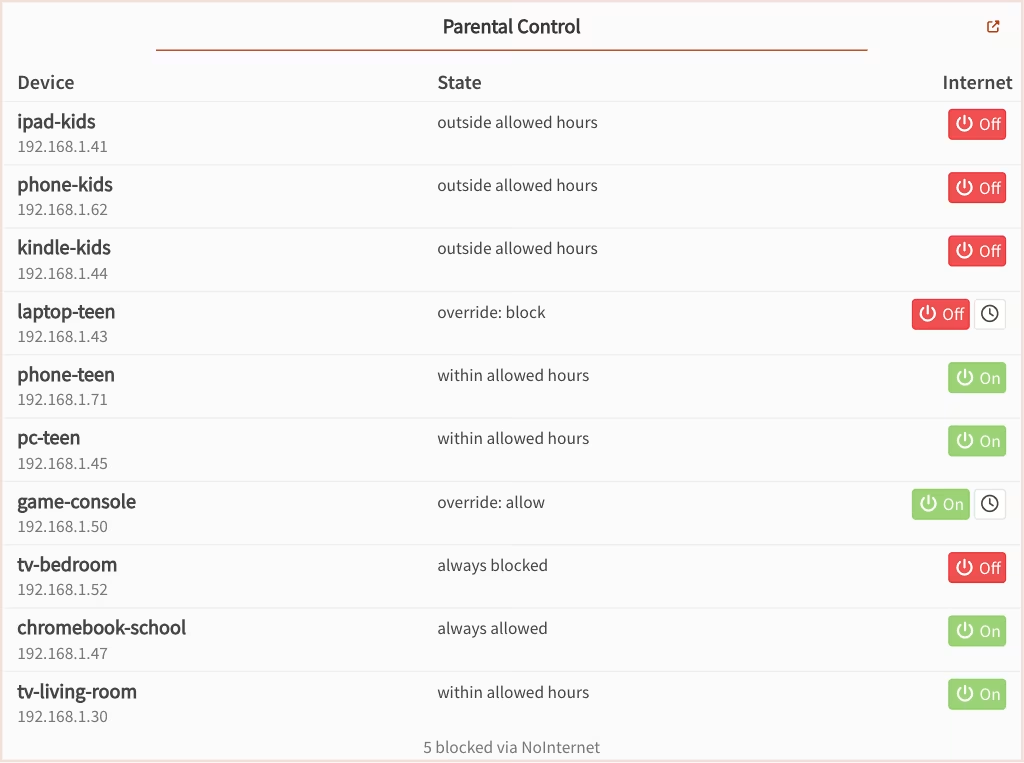
Flicking it sets an override that wins over the schedule without changing it. The clock button clears the override and hands the device back to its hours.
The widget reads the same script the schedule runs, so it shows what is actually enforced.
Devices
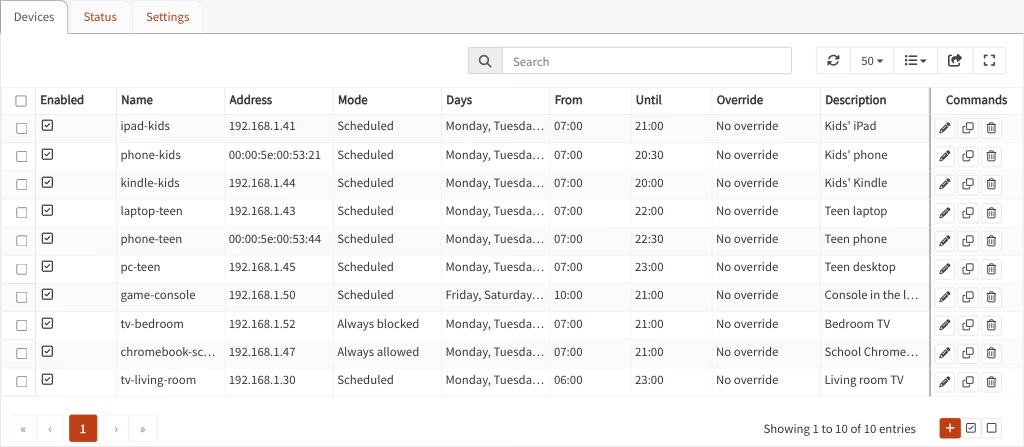
Add a device by IP or MAC address
The Address field takes an IPv4 address, a range or a MAC address, and suggests devices from Dnsmasq: the IP of one with a static reservation, the MAC of one that only has a lease. Picking one fills in its name.
A reserved IP is the more reliable choice; a MAC is turned into whatever address the device holds right now.
Status
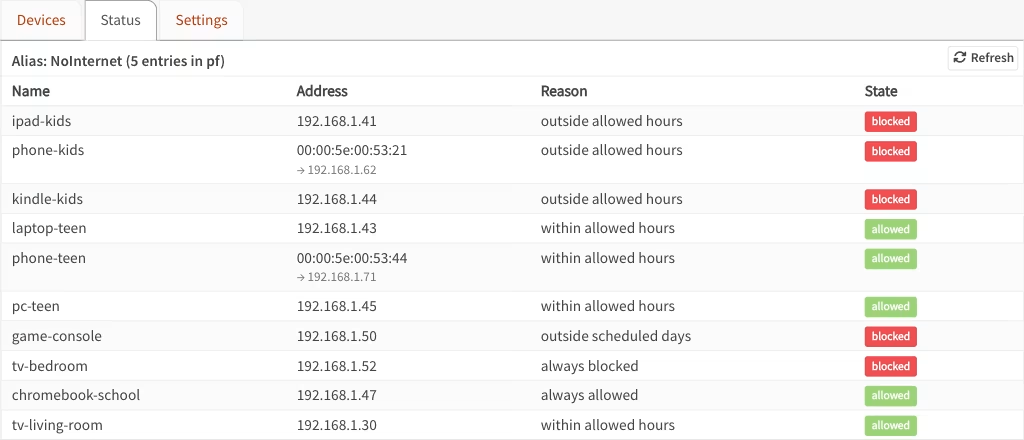
See what is enforced right now
The Status tab lists each device’s current state and why: within allowed hours, outside allowed hours, override: block. A MAC shows the address it resolved to, and the tab warns in red if the schedule job is missing or IPv6 is active.
Also in the plugin
Details that keep it working
Fails closed
A scheduled device whose hours are cleared is blocked, not left online.
Every interface
The rule has no interface set, so it also covers interfaces you add later.
Your rules untouched
It finds its own aliases and rule by a marker, so it never edits yours or duplicates its own.
Rename safely
Change the alias name and the existing aliases are renamed in place; the rule follows.
One source of truth
The settings page, the widget and the every-minute job all use the same script.
Non-admin users
The Firewall: Parental Control privilege gives someone access without full admin rights.
How it enforces
Two aliases and one rule
One alias holds the addresses currently denied internet, a second defines private address space, and one rule blocks the first from reaching anything outside the second. Switching a device is a table update, so it takes effect at once. Per-device rules were rejected on purpose: they don’t scale, they apply slowly, and every schedule would need its own rule.
- Every minute schedules are re-checked by a job the plugin creates. On a live firewall it acted 31 seconds after a change, unattended.
- 19 tests cover the schedule logic, including windows that cross midnight, and run anywhere PHP does.
Install
Set up in three steps
Run one command
The command below, as root on the firewall, over SSH or the console. It fetches the plugin from GitHub and installs it.
Add your devices
Reload the GUI, open Firewall → Parental Control and add each device with its hours.
Enable and apply
Tick Enable on the Settings tab, save, then press Apply. The Status tab shows what is blocked, and warns in red if IPv6 is active.
Shell · as root on the firewall
fetch -qo /tmp/pc.tgz https://codeload.github.com/nycoagung/opnsense-plugin-parentalcontrol/tar.gz/refs/heads/main && rm -rf /tmp/pcx && mkdir -p /tmp/pcx && tar -xzf /tmp/pc.tgz -C /tmp/pcx && sh /tmp/pcx/opnsense-plugin-parentalcontrol-main/install.sh- The every-minute schedule job is created when you enable the plugin.
- Keep it installed: add the cron job Install/refresh Parental Control plugin from upstream to run weekly.
configctl parentalcontrol sync,installanduninstall: the last removes the firewall objects but keeps the plugin.- Uninstall with
/usr/local/opnsense/scripts/OPNsense/ParentalControl/uninstall.sh(add--purgeto delete your device settings too).
Good to know
What it can’t do
Parental Control does one thing: it switches a device’s internet access. These fall outside it.
- IPv6 Blocking is IPv4 only. On a network with IPv6, a blocked device stays online over IPv6, and the Status tab warns.
- Websites and apps It switches the whole internet, not individual sites or apps.
- MAC addresses They only work while the firewall can see the device, and a randomised MAC can’t be followed.
- Address changes A device’s new address is picked up at the next sync, not instantly.
- Firmware upgrades They can remove the files; the weekly reinstall job puts them back.
- Uninstall, untested The uninstall script hasn’t been run end to end yet.
FAQ
Questions, answered
No. It switches a device’s whole internet access on or off, on a schedule or from the dashboard. It doesn’t look at which sites or apps a device uses.
Not yet. Blocking is IPv4 only, so on a network with IPv6 a blocked device keeps internet over IPv6, and will prefer it, while the plugin shows it as blocked. The Status tab warns in red when IPv6 is active.
No. Only traffic to the internet is blocked. Anything in private address space still works, so printers, media players, the NAS and local dashboards keep working.
A switch on the dashboard takes effect at once: it’s a single update to a firewall table, with no ruleset reload. Schedules are re-checked every minute. With Drop existing connections on, the default, open connections are cut too, so a stream doesn’t keep playing.
An IP with a static DHCP reservation is the more reliable choice, because the reservation already ties that MAC to that address. A MAC is turned into whatever address the device holds right now, so it only works while the firewall can see the device, and a randomised MAC can’t be followed.
It sets an override that wins over the device’s schedule, without changing the schedule. The clock button next to it clears the override, and the device follows its hours again.
OPNsense 26.7 or later. Address suggestions come from Dnsmasq; with another DHCP server you type the address yourself.
It can, because the files don’t belong to a package. Add the cron job Install/refresh Parental Control plugin from upstream to run weekly under System → Settings → Cron, and it puts them back; configctl parentalcontrol install does the same at any time.
Run /usr/local/opnsense/scripts/OPNsense/ParentalControl/uninstall.sh as root. It removes the firewall rule, both aliases, the schedule job and the files; your device settings stay unless you add --purge. The script hasn’t been run end to end yet. To stop blocking without uninstalling, untick Enable on the Settings tab.
Yes. It’s free and open source under the MIT licence, and the code is on GitHub.
Get Parental Control
Give every device a bedtime
One command as root, then add your devices under Firewall → Parental Control.
Install · run once on the firewall as root
fetch -qo /tmp/pc.tgz https://codeload.github.com/nycoagung/opnsense-plugin-parentalcontrol/tar.gz/refs/heads/main && rm -rf /tmp/pcx && mkdir -p /tmp/pcx && tar -xzf /tmp/pc.tgz -C /tmp/pcx && sh /tmp/pcx/opnsense-plugin-parentalcontrol-main/install.shQuestions or a bug? Open an issue on GitHub.
Also for OPNsense: Top Devices shows which devices are using your bandwidth.
- Free
- MIT licence
- OPNsense 26.7+
- IPv4 networks