Introduction
The home screen on a modern smart TV works harder for advertisers than for you. It has rows of “recommended” shows, sponsored banners and trailers that start playing on their own. Behind them sit dozens of preinstalled apps and background services, some of which report what you watch. On Android TV and Google TV you can’t uninstall most of them, and you can’t switch the home screen off.
FoyerLauncher is a free, open-source fix for both problems. It replaces the busy home screen with a calm one: up to nine apps you choose, over a full-screen photograph, with the clock and the weather. It also clears out the bloat your TV’s maker preinstalled, using researched lists for 12 brands. Nothing is uninstalled, and a restore script made for your TV puts everything back.
In this tutorial we’ll go through what FoyerLauncher changes, how to set it up with an AI coding agent, what each setting does, and how to undo it all.
1. Which TVs It Works On
FoyerLauncher does two jobs: it gives you a clean home screen, and it hides bloat. Which of them your TV gets depends on its operating system:
| Platform | Clean home screen | Debloat |
|---|---|---|
| Android TV and Google TV (any brand, Android TV OS 8.0 or later) | Yes | Yes |
| Amazon Fire TV | No: Fire OS doesn’t let another app take the Home button | Yes |
| Samsung (Tizen) | Advanced users only (see section 7) | No |
| LG (webOS), Roku, Hisense VIDAA, Fire TV Vega OS | No | No |
Not sure which you have? Settings → System → About names the operating system. A Google TV home screen has a “For you” tab, while Android TV shows rows of apps.
The debloat lists cover Sony, TCL, Hisense, Xiaomi, Philips, Sharp, Panasonic, Toshiba, Nvidia Shield, Chromecast with Google TV and Google TV Streamer, Walmart onn. and Amazon Fire TV. Any other Android TV gets a common list of Google’s own packages. The research behind the lists is most thorough for Sony, TCL, Xiaomi, Philips, Shield, Chromecast and Fire TV, and thinner for Hisense, Sharp, Panasonic, Toshiba and onn.
2. Understanding How It Works
Before you hand your TV over to a set of scripts, it helps to know what changes and what doesn’t:
- The Home button, not the system: FoyerLauncher installs as an ordinary app. Your TV’s own home screen stays installed and keeps its role. A small accessibility service sends the remote’s Home button to FoyerLauncher instead; it picks out that one key and cannot read what’s on screen. Hold Home for about a second to reach the TV’s own home screen and settings. Turn the service off and everything is exactly as it was.
- Debloat hides, never deletes: each app you choose is disabled for your user profile (
pm disable-user), the same as pressing Disable in the TV’s app settings. It keeps its data and comes back with one command. - Researched lists with guard rails: every package in a brand’s list carries a verdict, with a source for each. Bloat is recommended to hide: ad and recommendation services, viewing trackers, store demos and partner auto-installs. Optional covers features some people use, such as voice assistants, AirPlay, a camera or preinstalled streaming apps. Keep and never cover the apps the TV needs to work: the tuner and inputs, the remote, picture and sound, Google Play, system services, and the TV’s own home screen and setup. Those are refused even if you ask.
- A restore script for your TV: every change is recorded on your computer in
my-tvs/<model>-<serial>/, next to a script calledrestore-my-tv.sh. That script puts each hidden app back exactly as it was, gives the Home button back and can remove FoyerLauncher. It needs only adb, and it refuses to run against a different TV. - Private by design: there are no accounts, analytics, ads or tracking, and your settings stay on the TV. The app only goes online for the weather (which you can turn off) and for Google’s ambient photos (only if you choose them).
3. What You Need
- A computer on the same home network as the TV. Don’t use a guest network, and turn off any VPN while you set up. The setup scripts are written in Bash, so macOS or Linux is the easy path.
- An AI coding agent that can run commands on your computer, such as Claude Code. Setup is designed to be done this way: the agent reads the project’s own setup guide and works through it with you. With your agreement it installs what it needs: adb, Node.js, Python, the Android SDK build tools and a JDK.
- Developer options and debugging turned on on the TV (Step 1 below). Installing, debloating and restoring all work over ADB (Android Debug Bridge).
- Your TV’s IP address: find it under Settings → Network & Internet → your network, or in your router’s list of devices.
4. Step-by-Step Setup
Step 1: Turn On Developer Options and Debugging
- Open Settings → System → About and select Android TV OS build seven times, until the TV says “You are now a developer”. On a Fire TV, open Settings → My Fire TV → About and select the device name seven times.
- Go back to Settings → System → Developer options.
- Turn on USB debugging. Some TVs call it Network debugging, and Fire TV calls it ADB debugging. On Android TV OS 11 and later you may see Wireless debugging instead. It works too: your agent will pair with the code it shows.
Menu names vary by brand. If your screens don’t match, take a photo and show it to your agent; it can work from that.
Step 2: Get the Code
Open a terminal and download the project:
git clone https://github.com/nycoagung/foyerLauncher.git
cd foyerLauncher
Step 3: Start Your Agent with the Setup Prompt
Start your agent inside the foyerLauncher folder and paste the prompt from section 8. The agent asks before each step that changes the TV. First it will:
- ask for your TV’s brand, model, platform, software version and IP address, show you where to find each one, and read them back to you;
- install the tools it needs on your computer;
- connect to the TV. The TV asks Allow USB debugging?: choose Always allow from this computer. The agent then checks that it’s talking to the TV you described.
Step 4: Choose What to Hide
The agent shows you the apps that can be hidden on your TV, grouped, with a one-line description of each. It recommends which to hide and tells you what you’d lose with each optional group. You can hide the whole recommended set or keep some of it, and add optional groups or single apps. Before anything changes, it runs a dry run so you see exactly what will be hidden, and waits for your go-ahead.
Think twice about anything you rely on, such as YouTube, a streaming app you pay for, voice search or casting. Afterwards, check with the remote that its buttons (and voice search, if you use it), switching inputs, picture and sound, and Wi-Fi all still work. If something stopped working, the agent can bring back the app or group responsible on its own.
Step 5: Install FoyerLauncher and Check the Home Button
Some apps have no logo in FoyerLauncher’s style. The agent makes white ones for them from each app’s own icon and shows you a preview to approve. Then it builds FoyerLauncher and installs it. Choose Home button (recommended) so the remote’s Home key opens FoyerLauncher, or App only to open it from the Apps row and leave Home alone. Then check with the real remote:
- Press Home: FoyerLauncher opens.
- Hold Home for about a second: the TV’s own home screen opens.
- Open an app from FoyerLauncher, then press Home: FoyerLauncher comes back.
- Turn the TV off and on: FoyerLauncher appears shortly after the TV’s own home screen.
If Home still opens the TV’s own screen, look in Settings → Accessibility: some TVs ask you to confirm the “FoyerLauncher Home button” service there.
Step 6: Keep Your Restore Script
Finally, the agent shows you my-tvs/<model>-<serial>/restore-my-tv.sh and runs it as a dry run, so you see what it would undo. Keep the my-tvs folder, and copy it somewhere safe if you like: it’s what makes the restore exact.
5. A Tour of FoyerLauncher
Home: Dock or List
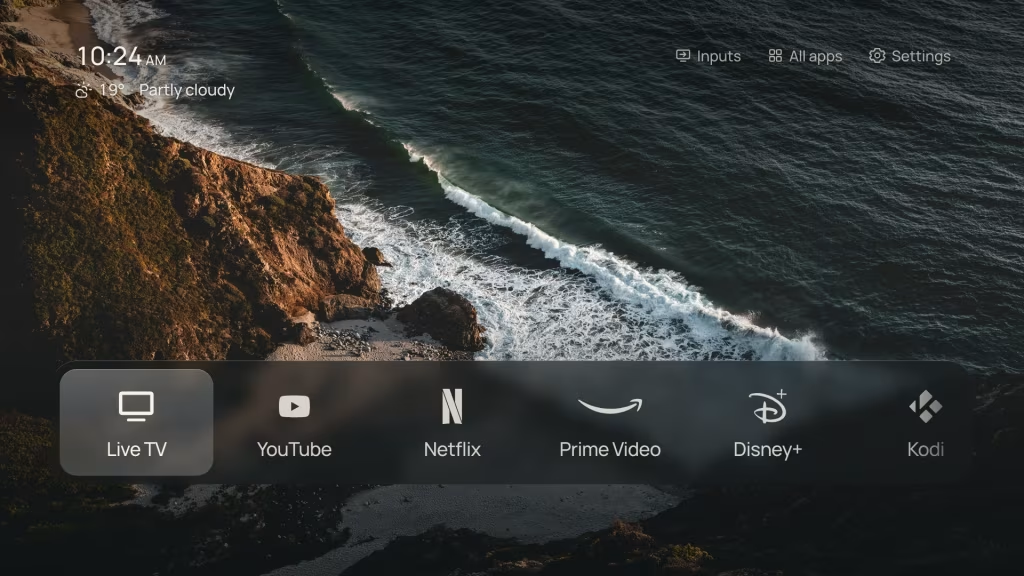
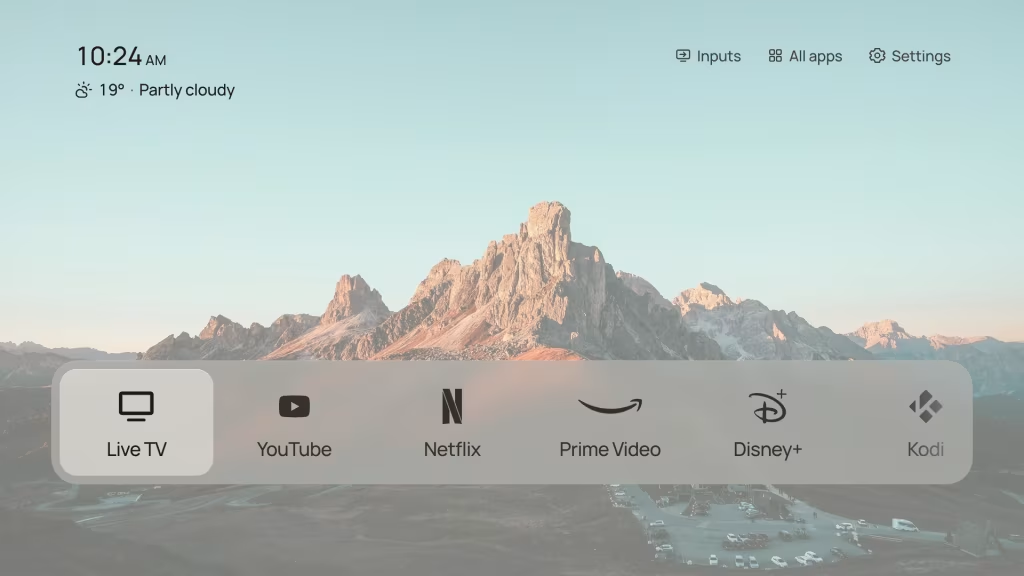
The image at the top of this guide is the Dock: a glass bar of apps along the bottom of a photograph. The clock and weather sit at the top left, and Inputs, All apps and Settings at the top right. Home starts with whichever of Live TV, YouTube, Netflix, Prime Video, Disney+, Kodi and VLC your TV has. Live TV opens the app that shows your channels, and Inputs switches between HDMI and other inputs. You can have up to nine apps on Home.
Prefer something plainer? The List layout puts the app names down the left in large type, on a photo or a plain dark or light background:
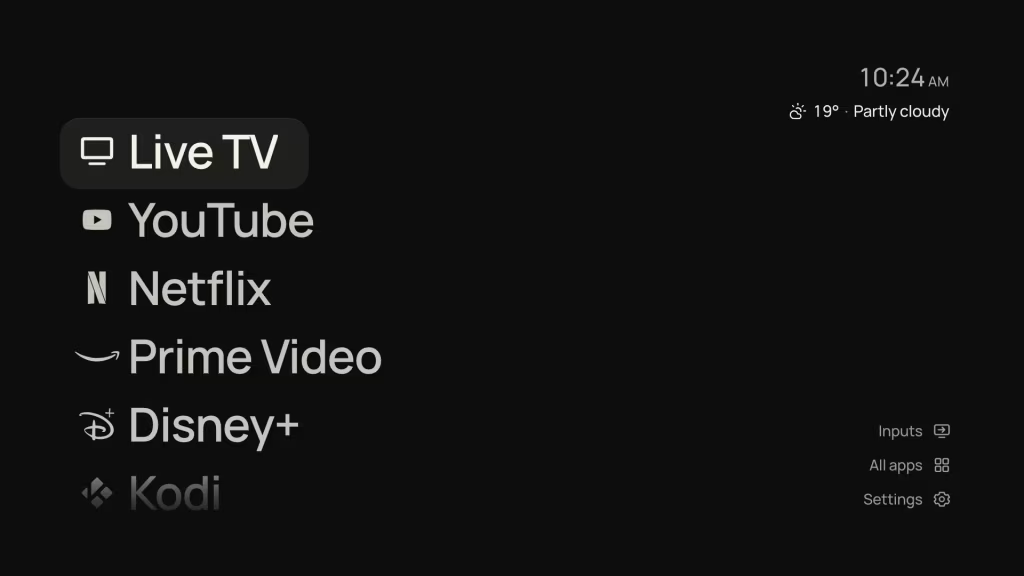
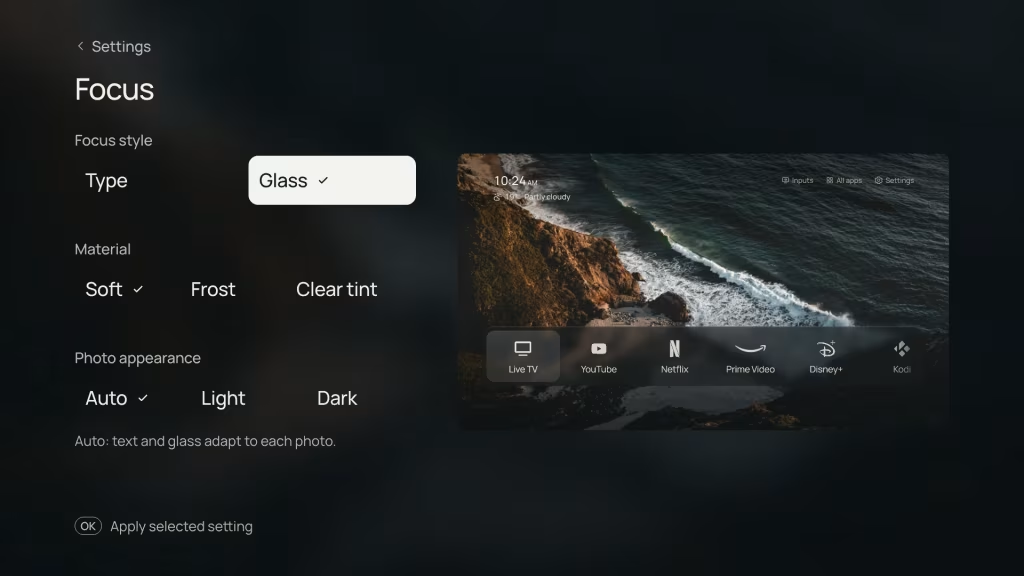
Over a photograph, text and glass adapt to each picture automatically. If you’d rather have one look everywhere, set Photo appearance to Light or Dark:
All Apps and Apps on Home
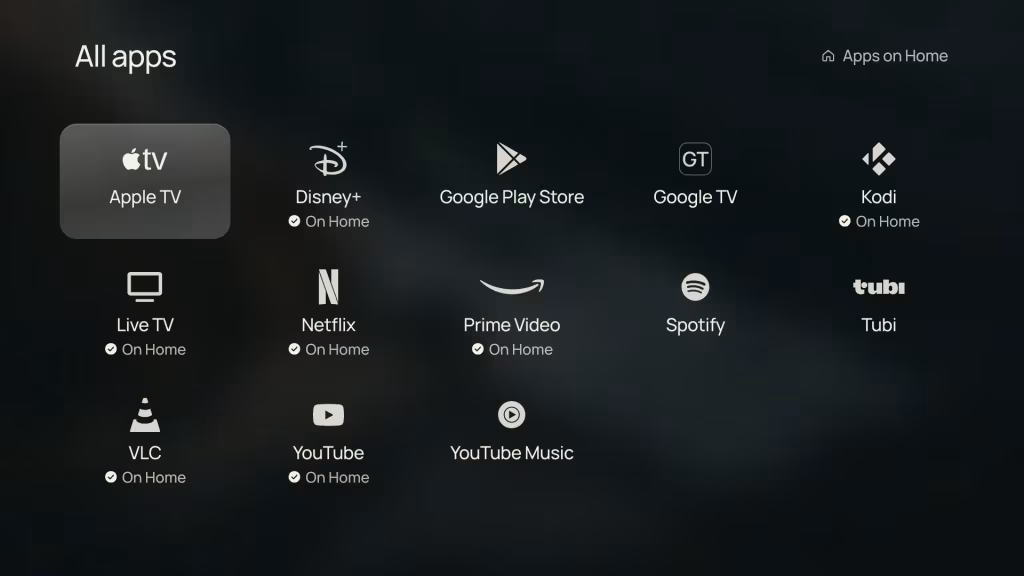
All apps lists everything installed, in alphabetical order. Apps without a bundled logo use the matching one made during setup, or their own icon. A badge marks the apps that are already on Home.
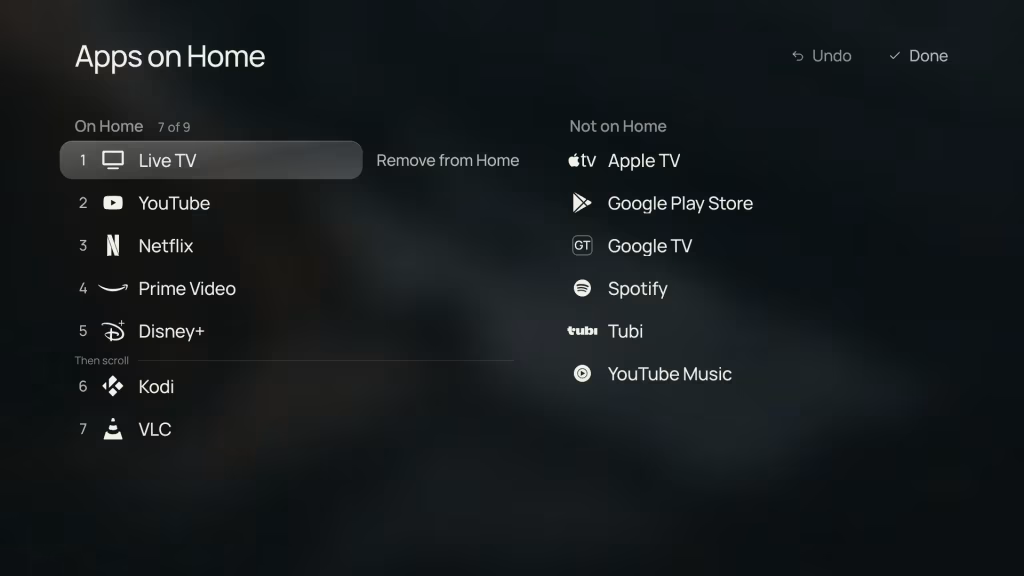
Apps on Home is where you arrange Home with the remote. Press OK on an app to pick it up, move it with Up and Down, and press OK again to drop it. Remove from Home takes an app off Home without uninstalling it, and the right-hand column adds apps back. Until you close the editor, Undo reverses each change.
Settings
Settings groups everything into eight sections. There’s no Save button: a choice applies the moment you press OK, and the preview on the right shows Home as it will look.
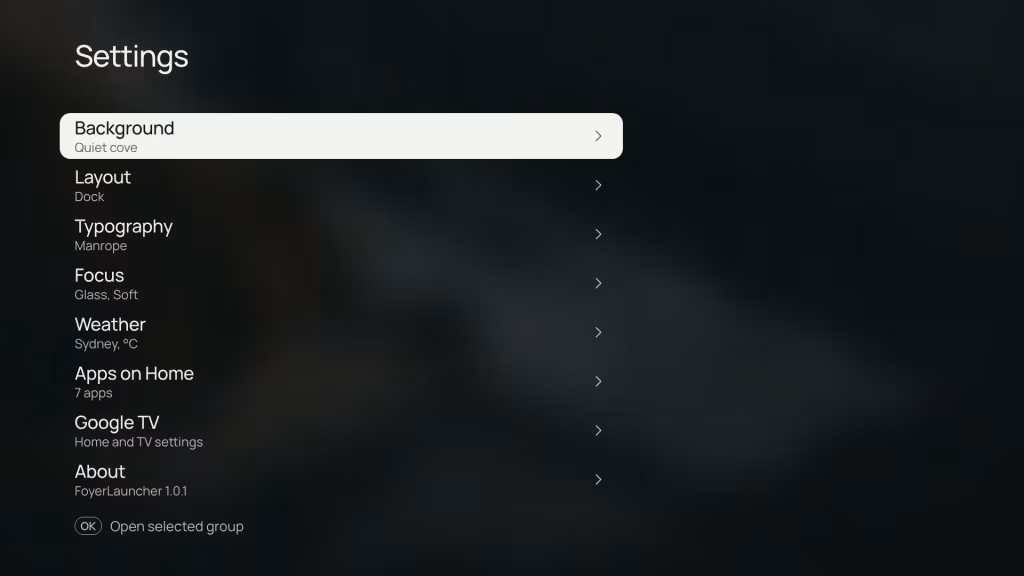
| Section | What you can change |
|---|---|
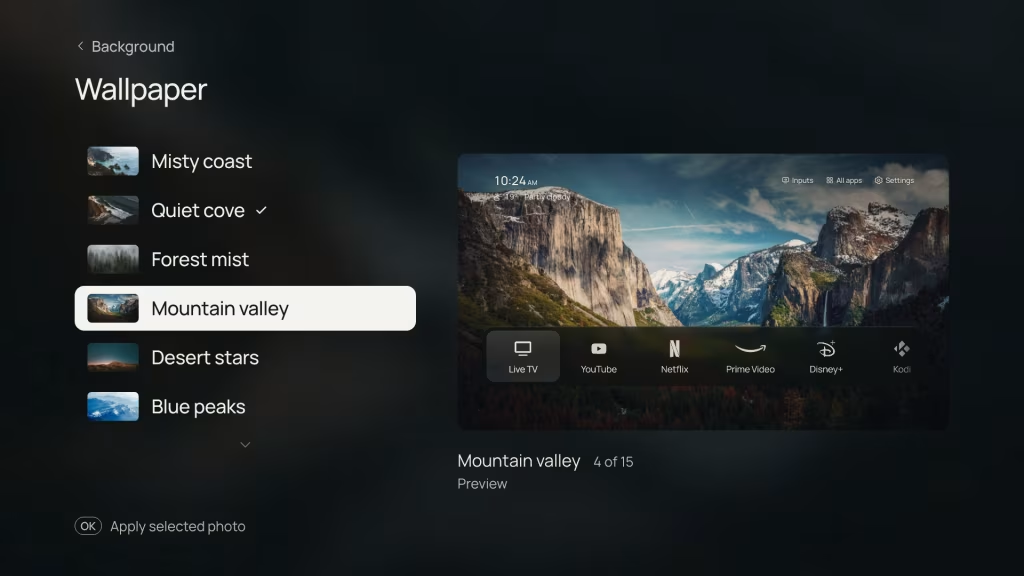
| Background | Photo, Light or Dark. Choose one of 15 bundled photographs or Google’s ambient photos, and how often it changes: fixed, each time Home opens, or every minute, 5 minutes, 15 minutes or hour |
| Layout | List or Dock, and whether apps and Home controls show as text, icons or both |
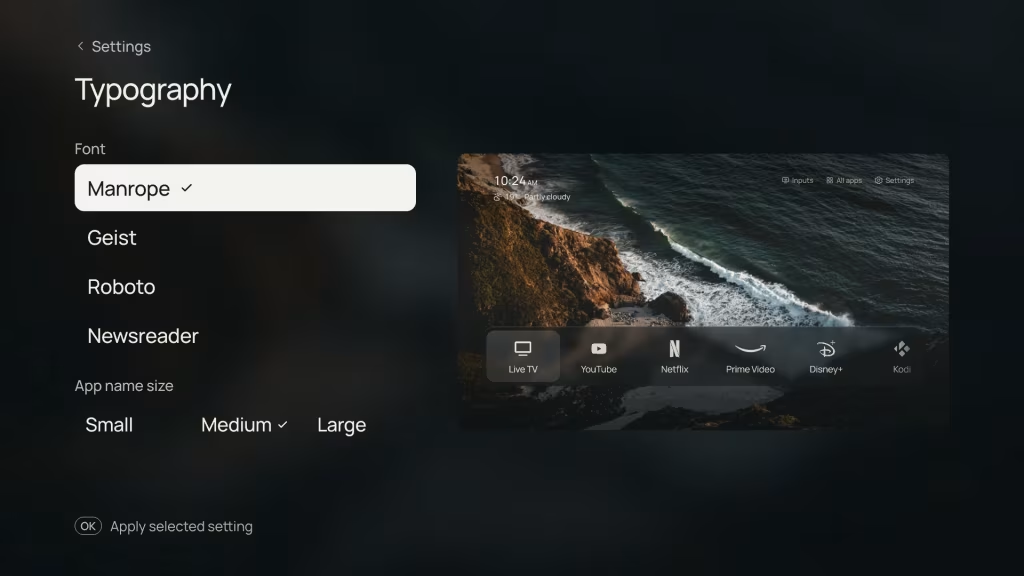
| Typography | Manrope, Geist, Roboto or Newsreader, with Small, Medium or Large app names |
| Focus | Glass or Type focus; Soft, Frost or Clear tint glass; Photo appearance Auto, Light or Dark |
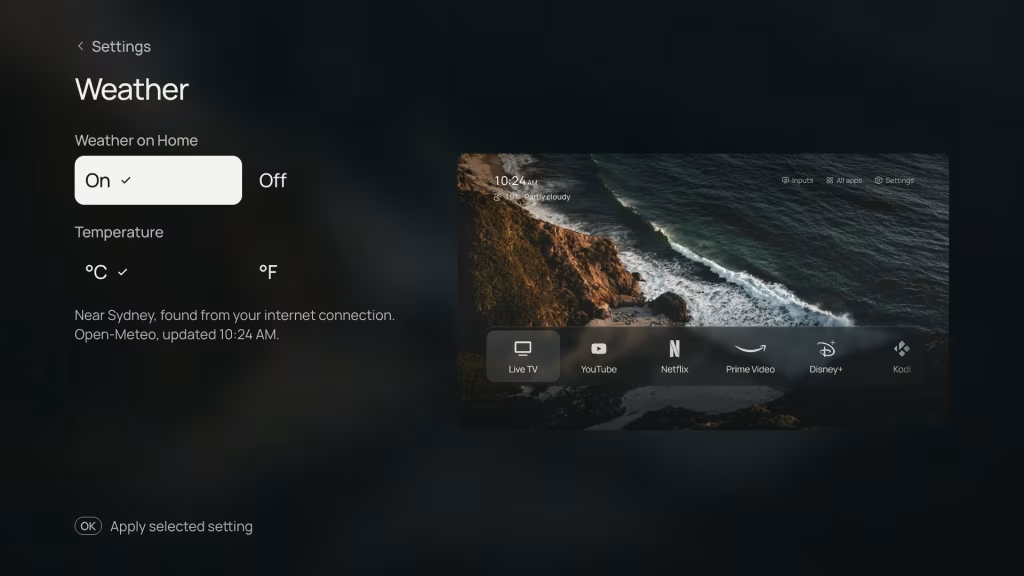
| Weather | On or Off, in °C or °F |
| Apps on Home | The editor shown above |
| Google TV / Android TV | Opens the TV’s own home screen and its settings |
| About | The version, what’s new, the privacy policy, and QR codes for the source code and support links |
In Background → Wallpaper, each photo you move to is previewed on Home, and OK applies it. The glass for every photo is rendered ahead of time, so the TV never has to blur anything live and modest TV hardware stays smooth.
The weather under the clock is found from the TV’s internet address (or its time zone, if that lookup is blocked) and comes from Open-Meteo. Turn it off here and FoyerLauncher makes no weather requests at all.
6. How to Undo It
Turn debugging back on (and accept the prompt on the TV if it asks again), then run your TV’s restore script from the foyerLauncher folder:
# See what it would undo
my-tvs/<model>-<serial>/restore-my-tv.sh --dry-run

# Bring back every hidden app and give Home back
my-tvs/<model>-<serial>/restore-my-tv.sh

# Also remove FoyerLauncher
my-tvs/<model>-<serial>/restore-my-tv.sh --uninstall
If the TV’s IP address has changed, put TV_IP=<new address> in front. To bring back just one app or group, use TV_IP=<TV_IP> debloat/restore.sh <group or app>. You can also simply ask your agent to do it.
Pro-Tip: A firmware update can switch hidden apps back on. Run
TV_IP=<TV_IP> debloat/debloat.sh --againto hide everything you hid before. Once setup is done, you can turn debugging off in Developer options, since it lets approved computers control the TV over your network. Turn it back on before you restore, re-hide or update.
7. A Note for Samsung (Tizen) Owners
FoyerLauncher also runs on Samsung TVs, but only as a launcher: there is no debloat for Tizen. Setup is for experienced users. You need the TV’s Developer Mode, Samsung’s TV SDK and your own Samsung developer certificates. Making the Home button open FoyerLauncher relies on undocumented settings that have been tested on a single Samsung The Frame. It can leave Home or start-up unusable, and a firmware update can break both the method and its way back. Proceed only at your own risk, and only if you’re comfortable recovering the TV yourself. The repository’s Samsung guide covers it.
8. The Full Setup Prompt
Start your agent in the foyerLauncher folder (Step 3 above) and paste this:
Read AGENTS.md and docs/agent-android-setup-guide.md, then set up my TV
with FoyerLauncher. Ask me for my TV's brand, model, platform, software
version and IP address, and show me where to find each one. If it's a
Samsung TV, follow docs/agent-tv-setup-guide.md instead.
Show me which preinstalled apps can be hidden and let me choose before
you hide anything. Explain each step and ask me before you connect to,
install on or change anything on the TV. Keep my TV's details out of the
project files, and finish by showing me my TV's restore script.
What the Agent Runs
If you’d like to know what happens behind the scenes, these are the main commands the agent runs for you. With Wireless debugging, use <TV_IP>:<port> in place of the address.
# The project's own tools
npm ci

# Connect (the TV asks you to allow it)
adb connect <TV_IP>

# The TV's brand and what can be hidden; changes nothing
TV_IP=<TV_IP> debloat/debloat.sh --list

# What a run would hide, then hide the recommended apps plus chosen groups
TV_IP=<TV_IP> debloat/debloat.sh --dry-run --include media,camera
TV_IP=<TV_IP> debloat/debloat.sh --include media,camera

# Matching logos for your TV's apps
TV_IP=<TV_IP> node scripts/marks-from-tv.mjs --auto
node scripts/build-icon-metrics.mjs

# Build FoyerLauncher, install it and give it the Home button
npm run build:android
TV_IP=<TV_IP> android/install.sh
Conclusion
A TV shouldn’t try to sell you something every time you press Home. With FoyerLauncher, Home shows your apps over a photograph you like, and the ads, trackers and demos your TV’s maker preinstalled are switched off. Nothing is uninstalled and every change is recorded, so if you sell the TV, run into trouble or just change your mind, one script puts it back exactly as it was.